



Important: Light Acclimation
How to Acclimate Your Corals to LUMORA™
The LUMORA™ advanced optical system and high-output LED array are capable of producing significantly higher PAR than many comparable LED fixtures on the market. As a result, using the same intensity settings as your previous lighting can expose corals to substantially more usable light than they are accustomed.
To help ensure a safe transition, we strongly recommend acclimating your aquarium to LUMORA™ lighting.
Recommended Acclimation
Begin with your LUMORA™ lights set to 20–40% intensity, regardless of the settings used on your previous lighting system.
Increase intensity gradually by 5–10% every two weeks, while closely monitoring your aquarium's response.
Watch for signs of light stress, including bleaching, tissue recession, reduced polyp extension, or unusual changes in coloration.
If any signs of stress occur, reduce the light intensity and allow your corals time to recover before making further adjustments.
Every reef aquarium is unique. Aquarium depth, mounting height, aquascape, coral species, water clarity, and previous lighting all influence the amount of light your corals receive. Because of these variables, there is no single intensity setting that is appropriate for every aquarium.
Taking a slow, gradual approach is the best way to protect your livestock and achieve optimal coral health, coloration, and growth under LUMORA™ lighting. Patience during the acclimation process will produce the best long-term results.
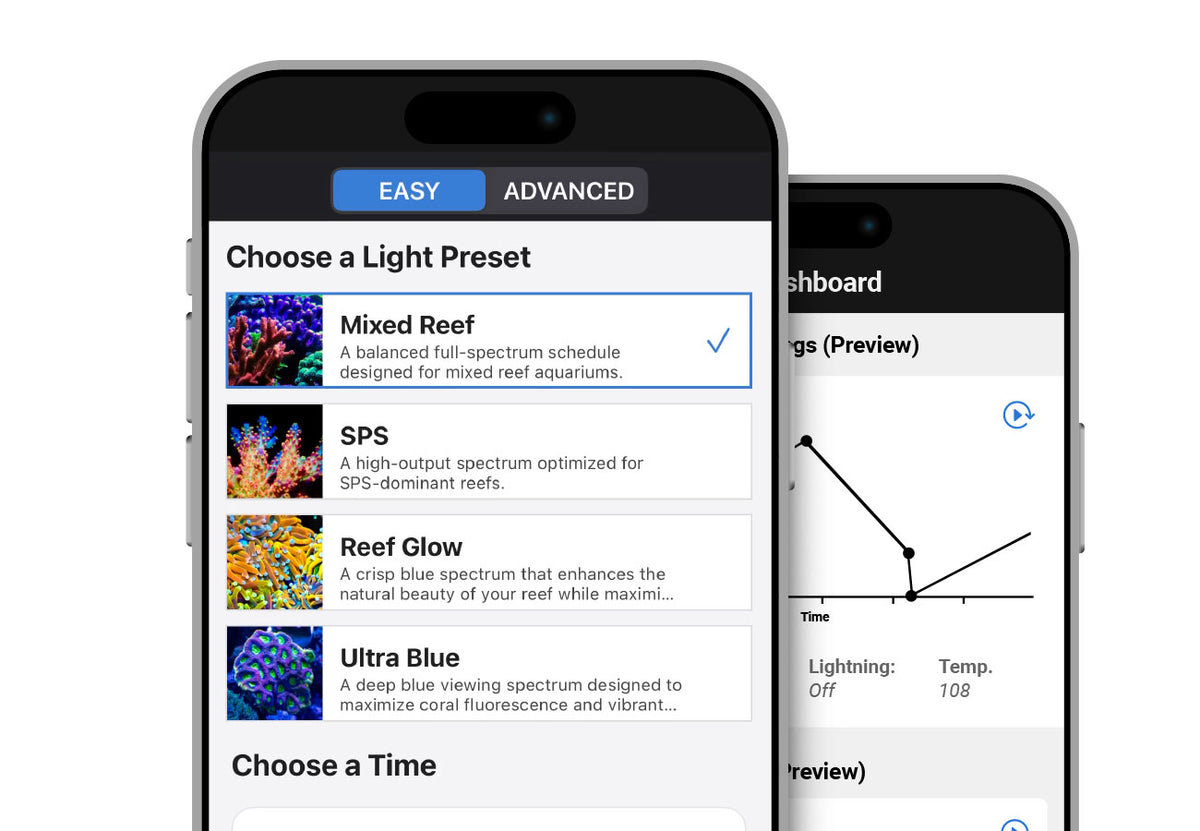
Download The Waterbox Aquariums App
Download Apple iOS App
Download Android App
Pairing Code: 24897673
LUMORA™ Troubleshooting
Use this guide to resolve common setup, connection, scheduling, and performance issues with your LUMORA™ lighting system.
Before troubleshooting, confirm that:
- The LUMORA™ fixture is connected to power.
- Bluetooth is enabled on your smartphone or tablet.
- The Waterbox Aquariums app is updated to the latest available version.
- Your mobile device is within range of the fixtures.
- The Waterbox Aquariums app has permission to access Bluetooth and nearby devices.
Bluetooth and Connection Issues
The Waterbox Aquariums® app cannot find or connect to my lights
LUMORA™ fixtures should be connected directly through the Waterbox Aquariums app and should not be paired through your phone or tablet’s Bluetooth settings.
Follow these steps:
- Open your device’s Bluetooth settings.
- Confirm that Bluetooth is turned on.
- Open your device settings and locate the Waterbox Aquariums app.
- Allow all required permissions.
- Completely close and reopen the Waterbox Aquariums app.
- Move your device closer to the LUMORA™ fixtures and attempt the connection again.
If the fixtures still do not appear, power-cycle the lights by disconnecting them from power, waiting approximately 30 seconds, and reconnecting them.
Only some of my LUMORA™ fixtures are connecting.
Confirm that every fixture is powered on and within Bluetooth range of your smartphone or tablet.
Attempt to connect each fixture individually before adding them to a group. If one fixture does not appear:
- Close and reopen the Waterbox Aquariums app.
- Power-cycle the affected fixture.
- Confirm that the fixture is not paired through your device’s Bluetooth settings.
- Attempt to reconnect the fixture individually.
Once every fixture is connected, regroup them within the Waterbox Aquariums app.
The app loses connection when I move away from the aquarium.
LUMORA™ fixtures communicate with your smartphone or tablet through Bluetooth. Your mobile device must remain within Bluetooth range while making changes or sending updates to the fixtures.
Once a schedule has been successfully saved, the fixtures will continue operating according to the programmed schedule without requiring your mobile device to remain nearby.
Saving Settings and App Updates
My lighting settings will not save.
After making changes to a preset, schedule, intensity, or color channel, select the appropriate submit or save option within the Waterbox Aquariums app.
Remain on the screen while the update is being transferred to the fixtures. Do not close the app, change pages, lock your device, or move out of Bluetooth range until the app confirms that the update is complete.
Leaving the screen before the update finishes may prevent the new settings from saving.
The app says the settings were updated, but the lights did not change.
Allow the app enough time to complete the update across all connected fixtures.
If the lights do not respond:
- Confirm that all intended fixtures are selected.
- Confirm that the fixtures are still connected in the app.
- Submit the changes again.
- Keep the app open and remain near the fixtures until the update is complete.
- If necessary, close and reopen the app and reconnect the fixtures.
When controlling a group, confirm that every fixture is included in the selected group.
Only some of my grouped lights respond to a setting change.
Confirm that all fixtures are connected and selected before submitting the change.
If one or more fixtures do not respond:
- Open the fixture or group list in the Waterbox Aquariums app.
- Confirm that every intended fixture is checked or selected.
- Remove the affected fixtures from the group.
- Reconnect each fixture individually.
- Add the fixtures back into the group.
- Resubmit the lighting settings and wait for the update to finish.
The app closes or becomes unresponsive during an update.
Completely close and reopen the Waterbox Aquariums app, then reconnect to the fixtures.
Before submitting the update again:
- Close unnecessary apps running on your device.
- Remain near the aquarium.
- Keep the screen active.
- Confirm that every fixture is connected.
- Avoid navigating away from the update screen.
If the issue continues, restart your smartphone or tablet and try again.
Scheduling Issues
My LUMORA™ lights are not following the programmed schedule.
Confirm that the schedule was submitted successfully and that the app completed the update before you left the screen.
Also verify:
- The correct schedule is assigned to the fixture or group.
- The start and end times are correct.
- The time and time zone on your smartphone or tablet are correct.
- Every intended fixture is selected.
- The fixtures remained connected until the schedule finished uploading.
Resubmit the schedule if any changes were made.
My lights turn on or off at the wrong time.
Check the date, time, and time-zone settings on your smartphone or tablet. LUMORA™ uses the device’s time information when configuring the lighting schedule.
After correcting the device time:
- Open the Waterbox Aquariums app.
- Reconnect to the fixtures.
- Review the lighting schedule.
- Resubmit the schedule.
- Wait for the update to complete.
Some lights turn off while others remain on.
This may occur if the fixtures are not using the same saved schedule or if the previous update did not complete across the entire group.
Reconnect to all fixtures and confirm that:
- Every fixture is included in the group.
- The same schedule is assigned to each fixture.
- All fixtures are selected when the schedule is submitted.
- The app remains open until the update is fully completed.
If the issue continues, remove the fixtures from the group, reconnect them individually, and then create the group again.
The lights remain on after the scheduled end time.
Review the final point in the lighting schedule and confirm that the intensity is set to zero for every color channel.
A low-intensity blue or moonlight setting may still produce visible light after the main daylight period has ended.
After making corrections, submit the updated schedule and remain on the screen until the transfer is complete.
The lights turn on after a power outage at an unexpected intensity.
Once power is restored, LUMORA™ will resume its stored programming. The fixture may briefly illuminate while restarting before returning to the appropriate point in its schedule.
Allow the fixture a short period to reconnect to its stored schedule. If it does not return to the expected setting, reconnect through the Waterbox Aquariums app and resubmit the schedule.
Preset and Intensity Issues
The selected preset is not appearing on all fixtures.
Confirm that every fixture is connected and selected before applying the preset.
When applying a preset to a group:
- Verify that all fixtures appear online.
- Select every intended fixture.
- Apply the preset.
- Submit the changes.
- Remain on the screen until the update is complete.
If one fixture does not update, reconnect and apply the preset to that fixture individually.
The light appears brighter than my previous reef light.
LUMORA™ may produce significantly higher PAR than other LED fixtures, even when the percentage settings appear similar.
When switching to LUMORA™, begin at approximately 20–40% intensity and increase the intensity gradually. Increase by approximately 5–10% every two weeks while monitoring your corals for signs of stress.
Do not attempt to match the percentage used on a different light, as intensity percentages are not directly comparable between lighting systems.
My corals appear stressed after installing LUMORA™.
Possible signs of excessive light exposure include:
- Coral retraction
- Fading or paling
- Bleaching
- Reduced polyp extension
- Corals remaining closed
Reduce the overall intensity and allow the corals time to acclimate. A slower acclimation period is always recommended when switching lighting systems.
Tank depth, mounting height, water clarity, coral placement, and coral species all affect the amount of light reaching the livestock.
The colors look different from the preset description.
The appearance of a lighting preset may vary based on:
- Aquarium depth
- Water clarity
- Room lighting
- Coral coloration
- Aquascape
- Mobile device or camera settings
- Individual channel adjustments
Confirm that the preset has not been modified and that the update was successfully applied to every fixture.
Fixture and Power Issues
My LUMORA™ fixture will not turn on.
Check the following:
- Confirm that the power supply is securely connected to the fixture.
- Confirm that the power cable is connected to a functioning outlet.
- Test the outlet with another device.
- Inspect the cables and connections for visible damage.
- Disconnect the fixture from power for approximately 30 seconds, then reconnect it.
If the fixture still does not turn on, discontinue use and contact Waterbox Support.
The fixture turns on, but it does not appear in the app.
Confirm that Bluetooth is enabled and that the Waterbox Aquariums app has all required permissions.
Do not pair the fixture through your mobile device’s Bluetooth menu. The connection must be completed from inside the Waterbox Aquariums app.
Power-cycle the fixture, reopen the app, and attempt the connection again while standing near the aquarium.
The fixture is flashing or displaying unexpected colors.
First, allow the fixture time to complete any setting or schedule update that may be in progress.
If the behavior continues:
- Confirm that the fixture is connected in the app.
- Apply a preset or known lighting setting.
- Submit the update.
- Remain on the screen until the update completes.
- Power-cycle the fixture if necessary.
If the flashing or unexpected colors continue after a successful update, contact Waterbox Support.
The fan is running louder than expected.
LUMORA™ uses active thermal management to maintain proper operating temperature. Fan speed may increase when the fixture is operating at higher intensity or when the surrounding temperature is elevated.
Confirm that:
- The fixture’s ventilation openings are unobstructed.
- The fixture is not enclosed inside a canopy without adequate airflow.
- Dust and debris are not blocking the vents.
- The fixture is mounted at the recommended height.
If the fan produces grinding, rattling, or other unusual mechanical noises, discontinue use and contact Waterbox Support.
The fixture feels warm during operation.
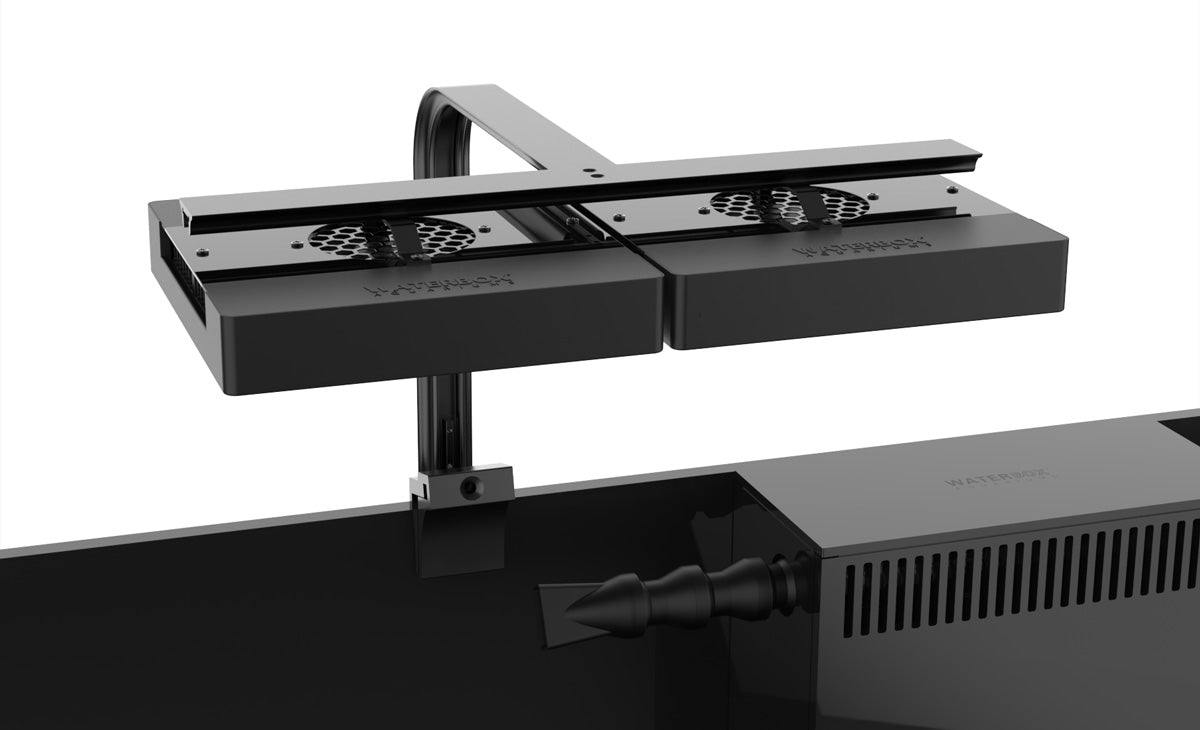
It is normal for the fixture to become warm while operating. LUMORA™ uses its housing and internal cooling system to manage heat produced by the LEDs.
Do not cover the fixture or block its ventilation openings. If the fixture becomes excessively hot, turns off unexpectedly, or produces an unusual odor, disconnect it from power and contact Waterbox Support.
Mounting and Environmental Issues
Can the LUMORA™ fixture get wet?
Lumora is designed for use above marine aquariums and can withstand the humid conditions commonly found around reef systems. However, the fixture is not waterproof.
Do not:
- Submerge the fixture.
- Expose it to direct water spray.
- Install it where splashing is likely.
- Handle the fixture or power connections with wet hands.
Disconnect the fixture from power before cleaning or performing aquarium maintenance near the light.
The fixture is not providing even coverage across the aquarium.
Confirm that the fixture is mounted between approximately 8–12 inches above the water surface.
Uneven coverage may also be caused by:
- Insufficient fixture quantity
- Fixture placement
- Aquarium width
- Rockwork or aquascape shadows
- Coral placement
- A deep aquarium
- An SPS-dominant layout
Wider, deeper, or SPS-dominant aquariums may require additional fixtures to provide optimal coverage and PAR.
App and Device Compatibility
The Waterbox Aquariums app is not requesting Bluetooth permission.
Open your smartphone or tablet settings, locate the Waterbox Aquariums app, and manually enable Bluetooth and nearby-device permissions.
If the permission does not appear:
- Close the app.
- Restart your mobile device.
- Reopen the app.
- Attempt to connect to a fixture again.
Reinstalling the Waterbox Aquariums app may also cause the device to request the necessary permissions again.
I replaced my phone or tablet. How do I reconnect my lights?
Download the Waterbox Aquariums app on the new device and enable all required Bluetooth and nearby-device permissions.
Do not pair the fixtures through the new device’s Bluetooth settings. Open the Waterbox Aquariums app and connect to the fixtures directly from within the app.
Confirm that the saved schedules and settings appear correctly after reconnecting.
Can two smartphones or tablets control the same LUMORA™ fixtures?
To prevent connection conflicts, disconnect from the fixtures on the first mobile device before attempting to connect from another device.
Only use one active mobile device at a time when making changes or submitting updates.
Cleaning and Maintenance
How should I clean my LUMORA™ fixture?
Disconnect the fixture from power and allow it to cool before cleaning.
Use a clean, soft, dry microfiber cloth to remove dust and salt residue. For stubborn residue, lightly dampen the cloth with fresh water and wipe the exterior carefully.
Do not:
- Spray cleaning products directly onto the fixture.
- Use abrasive cleaners or cloths.
- Allow moisture to enter the fixture, vents, ports, or power connections.
- Submerge any part of the lighting system.
Ensure the fixture is completely dry before reconnecting it to power.
When to Contact Waterbox Support
Contact Waterbox Support if:
- The fixture will not power on after checking the outlet and connections.
- The light repeatedly disconnects after completing the troubleshooting steps.
- The fixture flashes or displays unexpected colors after a successful reset or update.
- The fan makes grinding, rattling, or abnormal mechanical noises.
- A cable, power supply, connector, or fixture shows signs of damage.
- The fixture has been exposed to a significant amount of water.
- Multiple fixtures continue operating out of sync after being regrouped and reprogrammed.
When contacting support, provide:
- Your order number
- The number of affected fixtures
- Your smartphone or tablet model
- Your device operating-system version
- Photos or videos showing the issue
- A description of the troubleshooting steps already completed